> For the complete documentation index, see [llms.txt](https://docs.hidemyacc.com/llms.txt). Markdown versions of documentation pages are available by appending `.md` to page URLs; this page is available as [Markdown](https://docs.hidemyacc.com/hidemyacc-3.0-features/create-new-profile/new-profile/extensions-tab.md).
# Extensions tab
### 1. Install available extensions
{% hint style="info" %}
Hidemyacc 3.0 has **appromotexitatelyly 800 extensions** you can choose from.
{% endhint %}
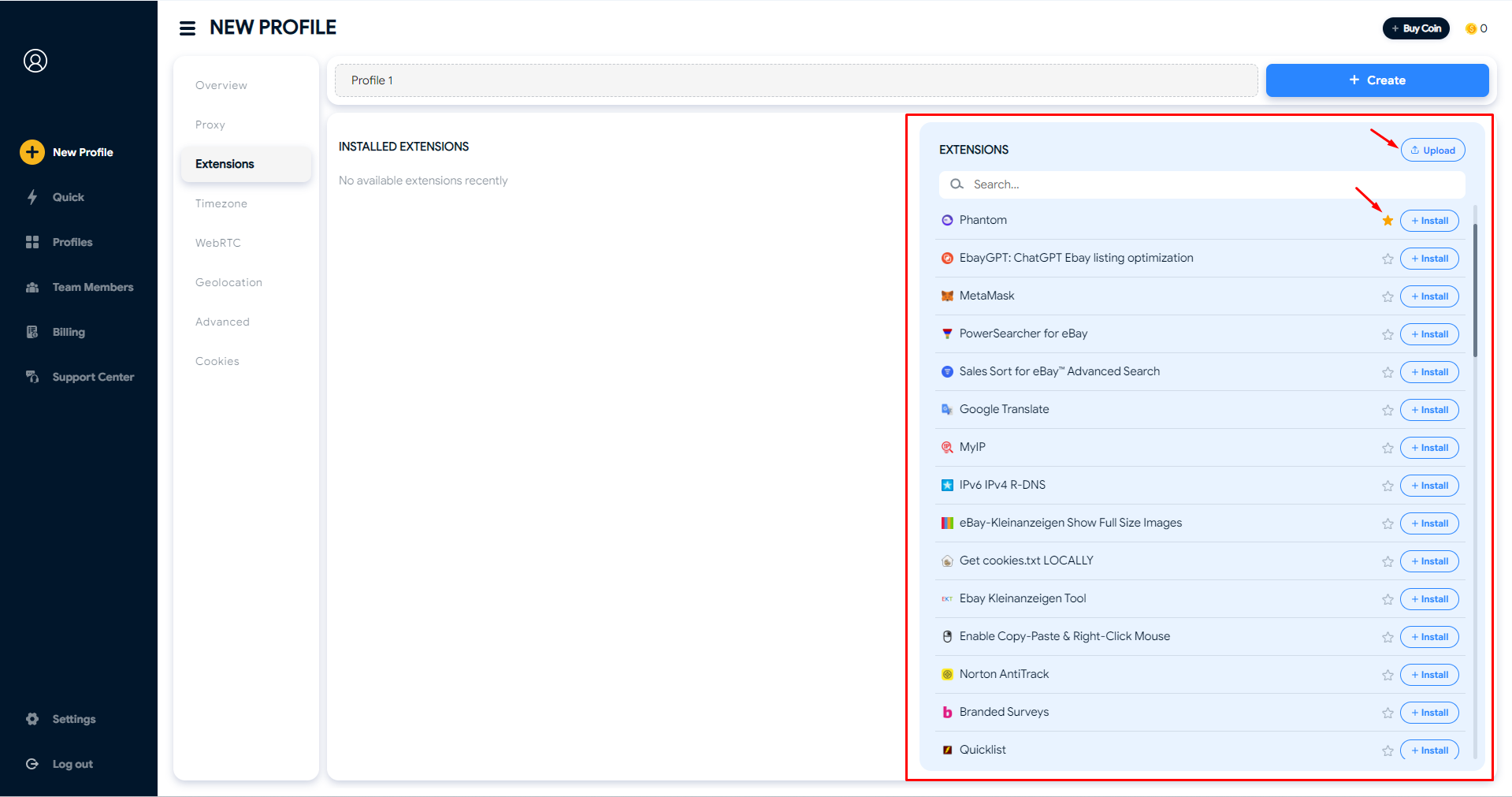
You can search for extensions you want and **click Install icon** to install it on your profile. To assign extension to all profiles created in the future, click on the star icon.
If you can’t find the needed extension in Hidemyacc, you can upload them from your computer.
### 2. Upload extensions from your computer
Select **Upload**, drag the folder containing the extensions from your computer. To download an extension from the Chrome Web Store, follow these steps.
**Step 1:** Add the CRX Extractor extension to your Chrome profile.
**Step 2:** Go to the Chrome Web Store and search for the extension you need.
**Step 3:** Click on the CRX extension icon and choose "Download as ZIP".
**Step 4:** Extract the extension file you just downloaded using CRX Extractor.
**Step 5:** Go to your Hidemyacc profile and upload this file. The system will automatically set up the extension for your Hidemyacc profile.
### 3. Adding extension from Chrome Store
This feature allows you to add extensions directly from the Chrome Store without having to download the file to your computer. Simply copy and paste the extension link from the Chrome Store and click **Add Extension** to complete the process.
* If the extension link is valid, the system will let you **Upload Extension**.
* If the link is incorrect, contains syntax errors, missing characters, or extra symbols, the system will display a warning saying that the extension could not be found.
Copy & paste the Chrome store URL to import extension
### 4. Extension limits by plan
Hidemyacc limits the number of extensions you can add based on your subscription plan as follows:
* **Mini Plan:** 5 extensions
* **Starter Plan:** 5 extensions
* **Base Plan:** 10 extensions
* **Team Plan:** 25 extensions
* **Business Plan:** 50 extensions
If you exceed the allowed number of extensions, the system will display an error message.
---
# Agent Instructions
This documentation is published with GitBook. GitBook is the documentation platform designed so that both humans and AI agents can read, navigate, and reason over technical content effectively. Learn more at gitbook.com.
## Querying This Documentation
If you need additional information that is not directly available in this page, you can query the documentation dynamically by asking a question.
Perform an HTTP GET request on the current page URL with the `ask` query parameter, and the optional `goal` query parameter:
```
GET https://docs.hidemyacc.com/hidemyacc-3.0-features/create-new-profile/new-profile/extensions-tab.md?ask=&goal=
```
`ask` is the immediate question: it should be specific, self-contained, and written in natural language.
`goal` is optional and describes the broader end goal you are ultimately trying to accomplish on behalf of the user. GitBook uses it to tailor the answer towards what is most useful for that goal.
The response will contain a direct answer to the question and relevant excerpts and sources from the documentation.
Use this mechanism when the answer is not explicitly present in the current page, you need clarification or additional context, or you want to retrieve related documentation sections.