> For the complete documentation index, see [llms.txt](https://docs.hidemyacc.com/llms.txt). Markdown versions of documentation pages are available by appending `.md` to page URLs; this page is available as [Markdown](https://docs.hidemyacc.com/6.2.-create-drag-and-drop-scripts/variables-command-group.md).
# Variables command group
### **Variables**
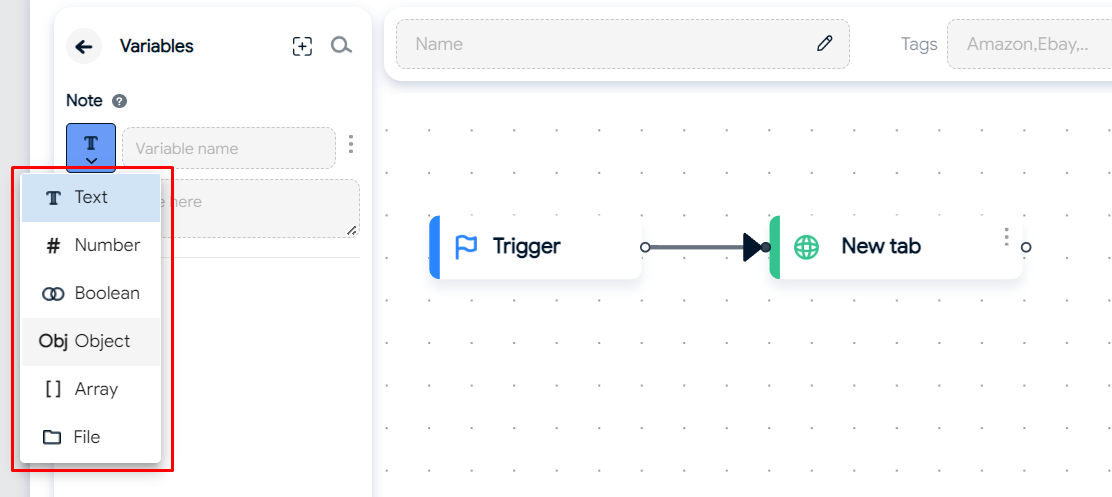
With the Variables command, you can add variables of the following data types:
1. **Text:** Alphabetic characters (e.g., ID, Name,...)
2. **Number:** Numeric values, including integers and decimals (e.g., 0, 5, 10, 13, 0.5, 0.8,...)
3. **Boolean:** Logical values, with only two possible states: True and False. True represents the satisfaction of a condition, while False represents the dissatisfaction of a condition.
4. **Object:** Reference data type, capable of storing various data types within a single variable.
5. **Array:** Array data type, where you need to input an array formatted as JSON.
6. **File:** You can add any type of file such as .txt, .docx, .xlsx,...
You must enter a variable name when adding to declare its existence, but it's not necessary to add a value as you can assign a value when creating automation scripts.
After adding variables, you can search for them by name or delete them if not in use.
### **Set variable**
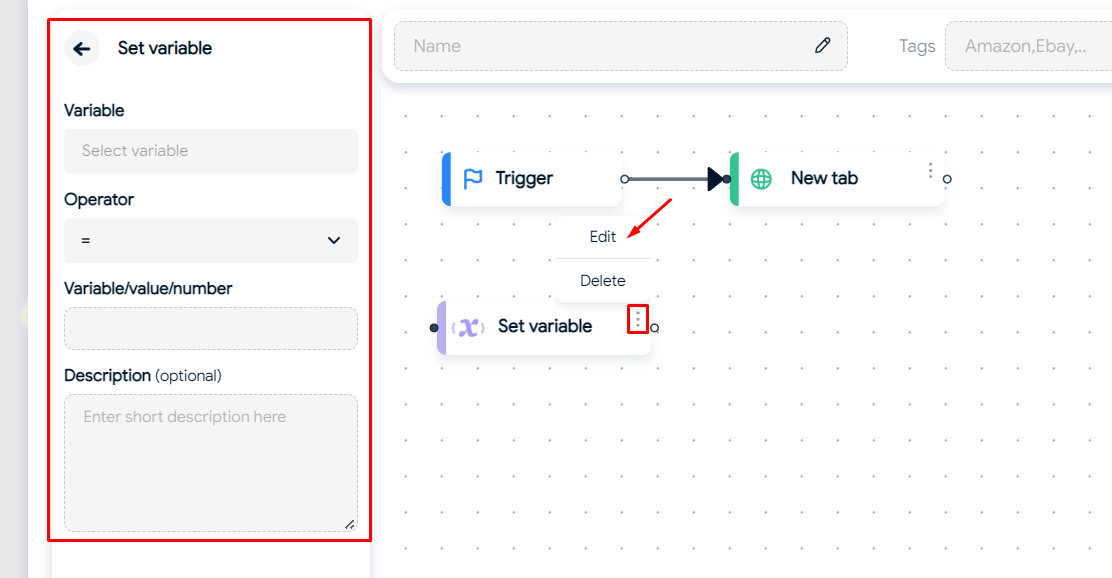
To assign a value to a variable when creating an automation script, use the Set variable command, including:
1. **Variable:** Select the variable to assign a value to, usually empty variables (without a pre-added value).
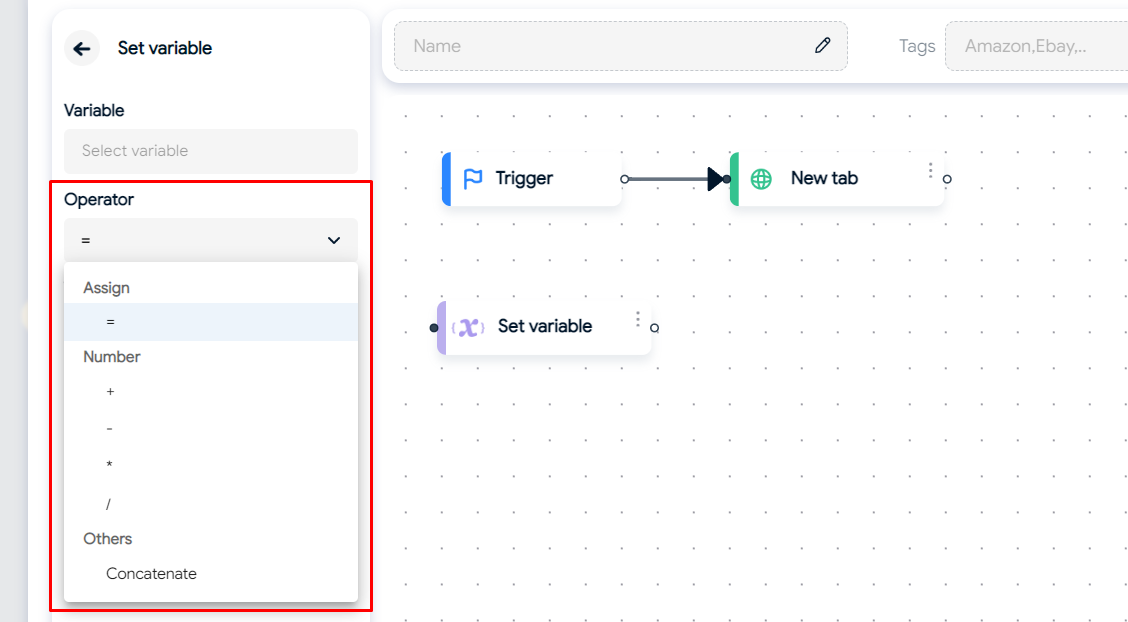
2. **Operator:** Choose the operation to perform.
* *Assign "=":* Assign a value to the variable.
* *Number "+,-,\*,/":* Perform addition, subtraction, multiplication, and division on numbers.
* *Other "Concatenate":* Concatenate strings or add elements to an array.
3. **Variable/value/number:** Assign a value, a number, or another variable (previously added using the Variables command) to the variable.
Click on three dot icon to Edit command
Choose your needed operator
### **Slice variable**
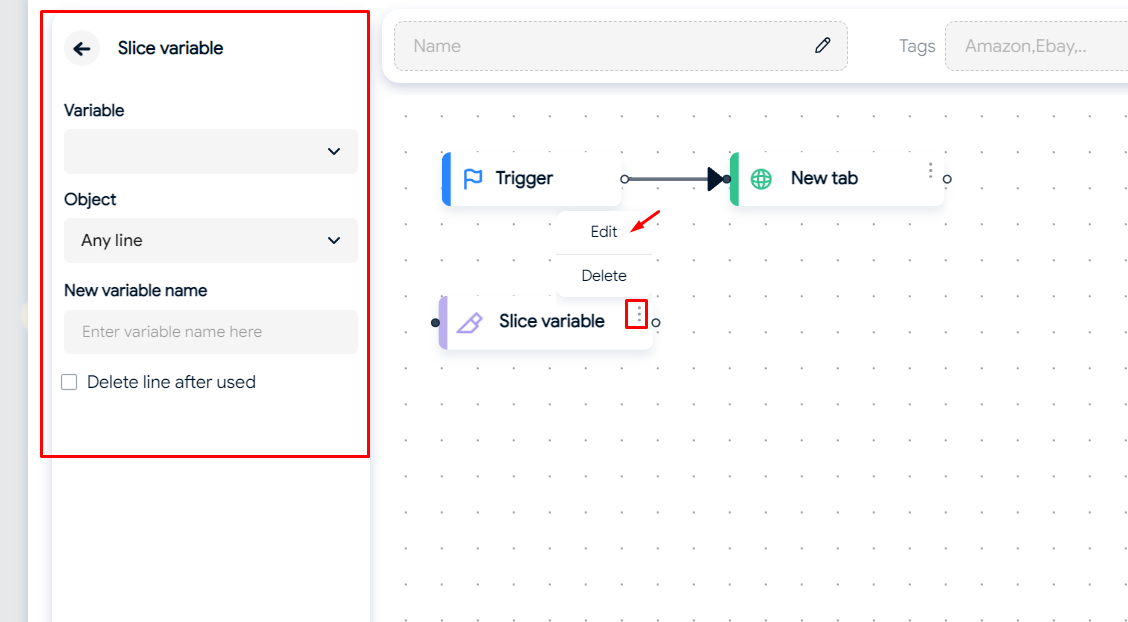
Use the Slice variable command to read and slice strings. For example, if you want to read a file and separate its data into individual variables:
1. **Variable:** Choose the variable containing the string to read or slice.
2. **Object:** Select the type of string read.
* `Any line:` Choose any string per line.
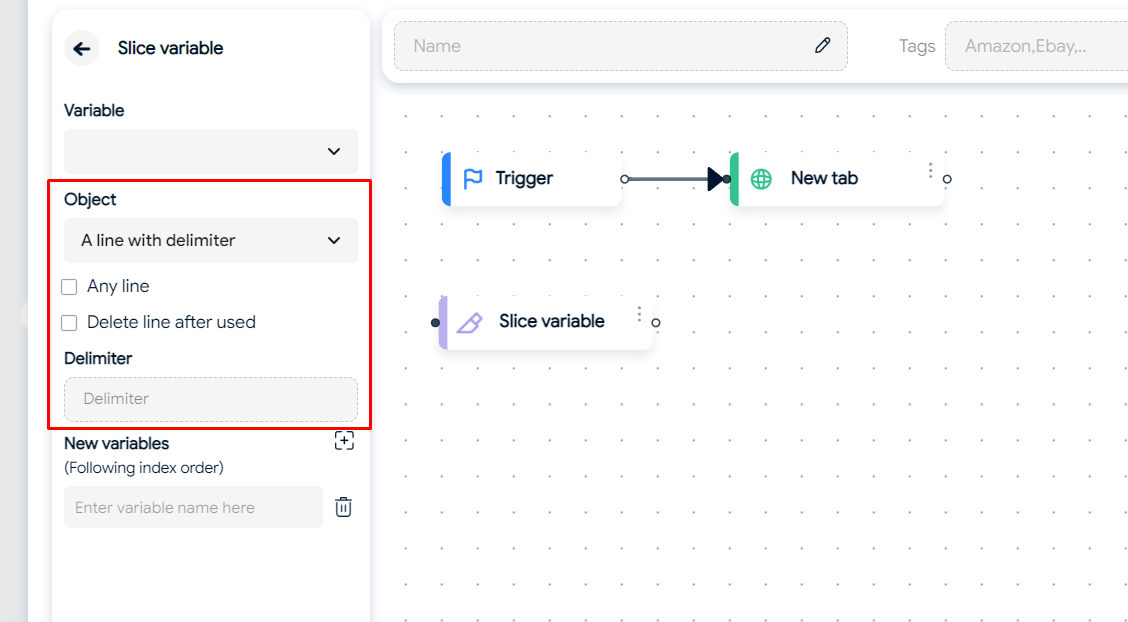
* `A line with delimiter`: Choose to read/slice strings within the same line. If you select this object type, you will need to specify:
* *Any line:* Choose any string within that line.
* *Delete line after used:* Delete the string after reading.
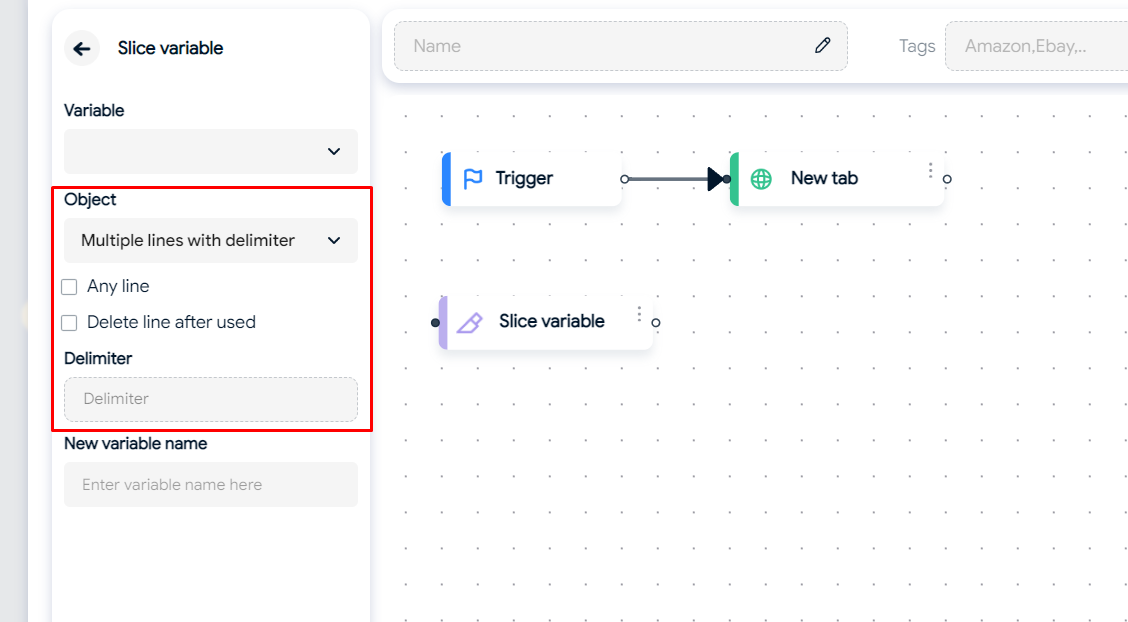
* `Multiple lines with delimiter`: Choose to read/slice strings across different lines. You need to set additional options as follows:
* *Any line:* Choose any string within those lines.
* *Delete line after used:* Delete the string after reading.
3. **Delimiter:** Input the character identifying the string delimiter (e.g., ";", "|",...). If you don't enter a delimiter, the system will take all text in that line.
4. **New variable name:** Assign the sliced string data to new variables.
### **Export variable**
The Export variable command is used to export variable values to a new file. This command is typically used after the Slice variable command to save the data of a sliced file.
1. **Variable:** Choose the variable containing the value to export.
2. **Output:** Select the file to export the value to. You need to create a file on your computer and paste the file path here.
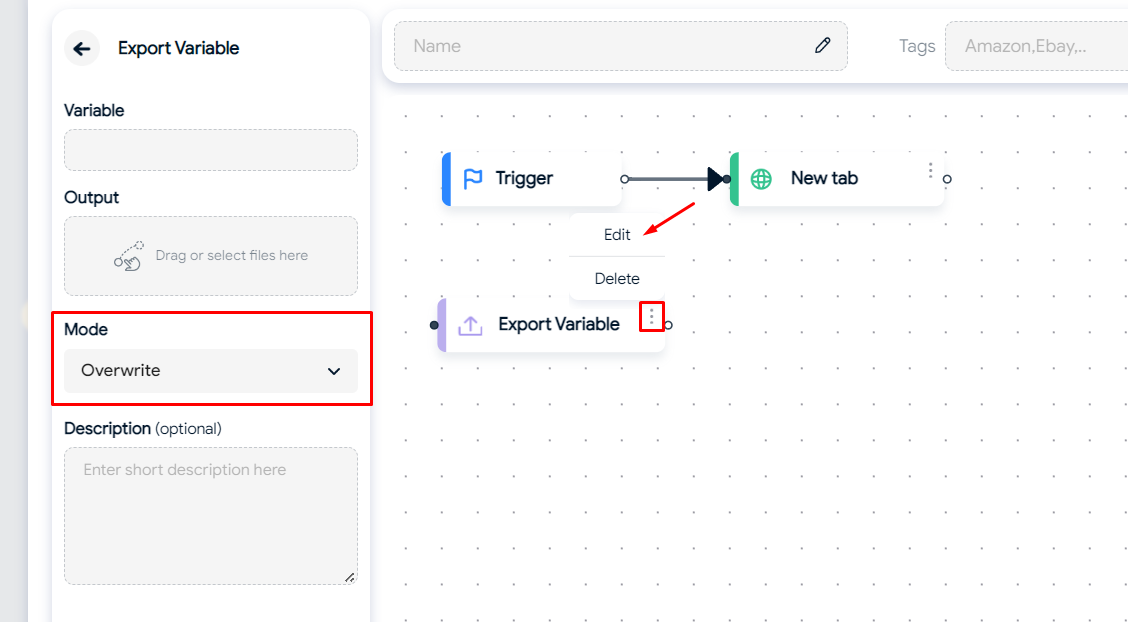
3. **Mode:** Select the type of value writing.
* `Overwrite:` Overwrite the file. This writing type will replace the entire current content of the file with the new data you provide.
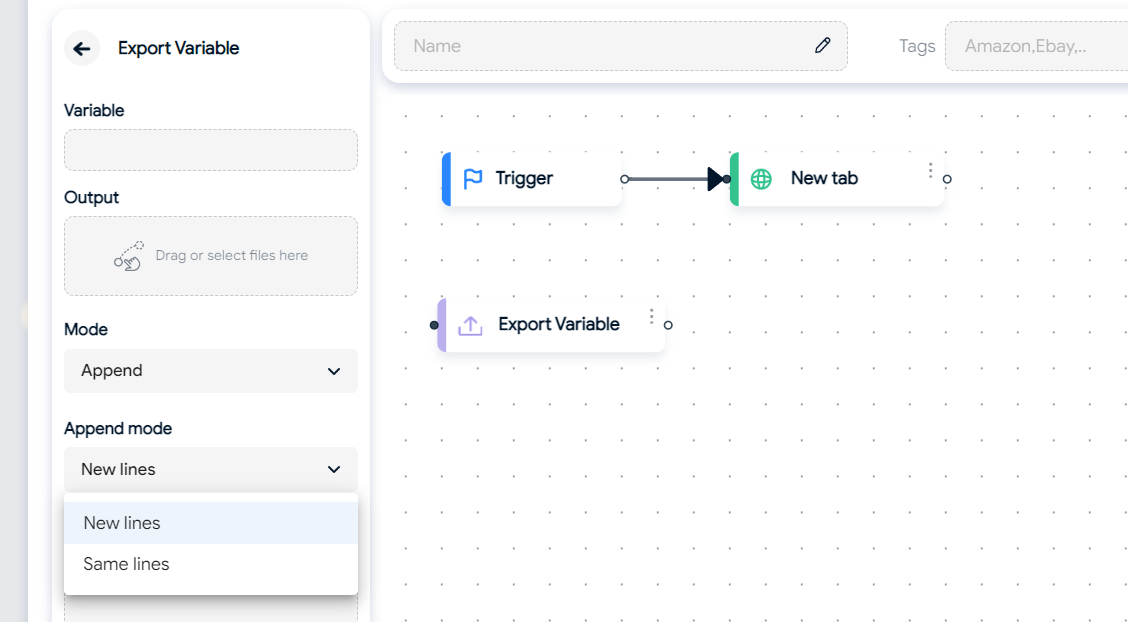
* `Append:` Append data. This writing type will append data line by line or write to the same line of the file, depending on the settings:
* *New lines:* Write to a new line.
* *Same lines:* Write to the same line. If writing to the same line, you need to enter a "Delimiter" - the character separating strings.