> For the complete documentation index, see [llms.txt](https://docs.hidemyacc.com/llms.txt). Markdown versions of documentation pages are available by appending `.md` to page URLs; this page is available as [Markdown](https://docs.hidemyacc.com/2.-how-to-create-new-profiles/2.1.-create-a-new-profile.md).
# 2.1. Create a new profile
Tutorial on how to create a new profile
In this section, Hidemyacc will guide you on how to create a new profile in Hidemyacc and how to manage these profiles.
### ⚙️ Overview tab
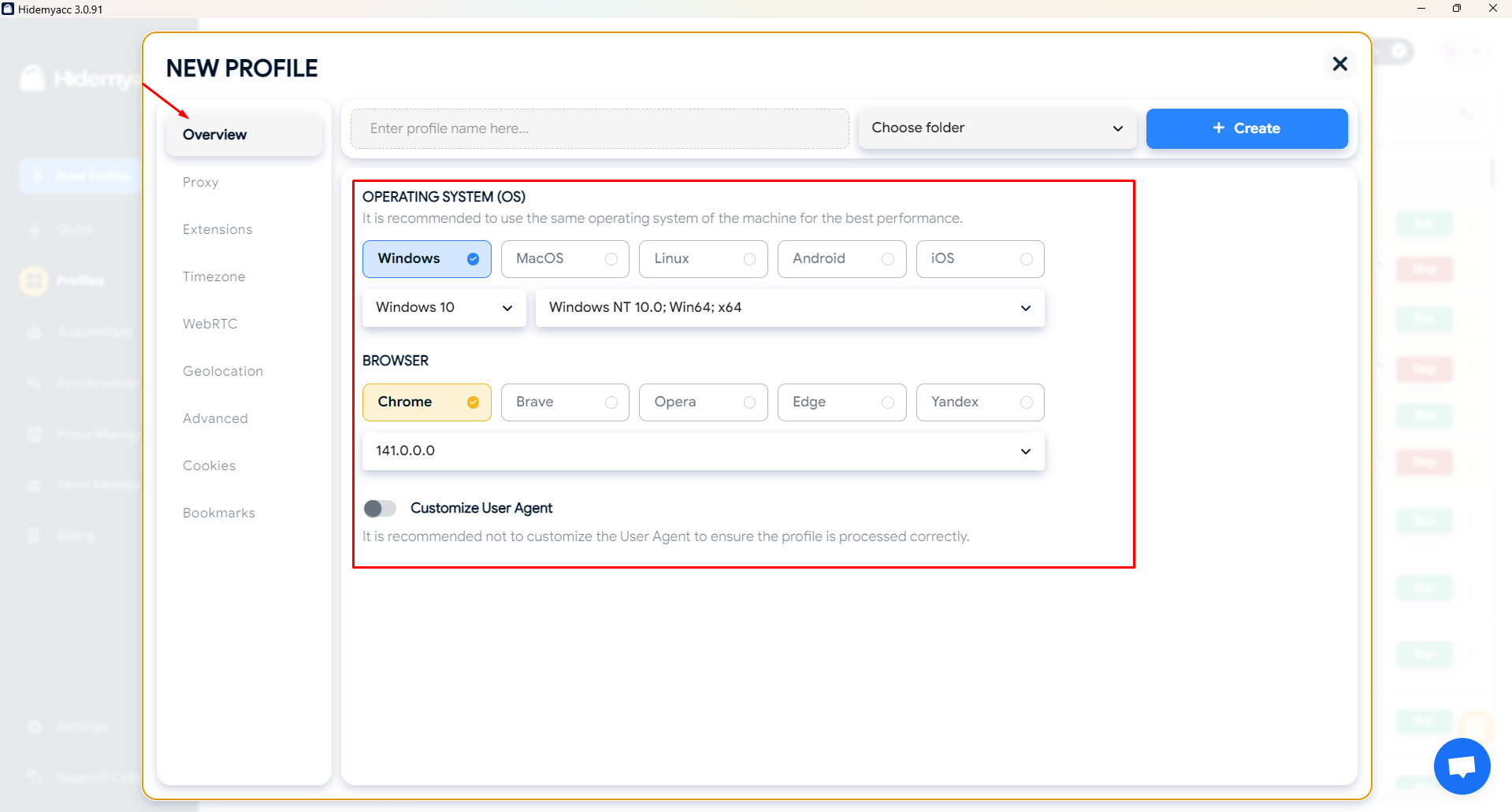
In the **Overview tab**, you can set up the **Operating System** and **Browser** configurations of your **New Profile** by following these steps:
1. Enter your profile's name.
2. Choose an operating system (it's best to pick an OS matching your real device for optimal system performance). Hidemyacc currently supports 5 operating systems: Windows, macOS, Linux, Android, and iOS. Android and iOS are supported from the Base package upward.
3. Choose a browser and browser version. Hidemyacc supports 5 browsers: *Chrome, Brave, Opera, Edge, and Yandex.*
Create a new profile on Hidemyacc
In addition to choosing from the system's built-in options, you can also customize the user-agent yourself.
### ⚙️ Proxy tab
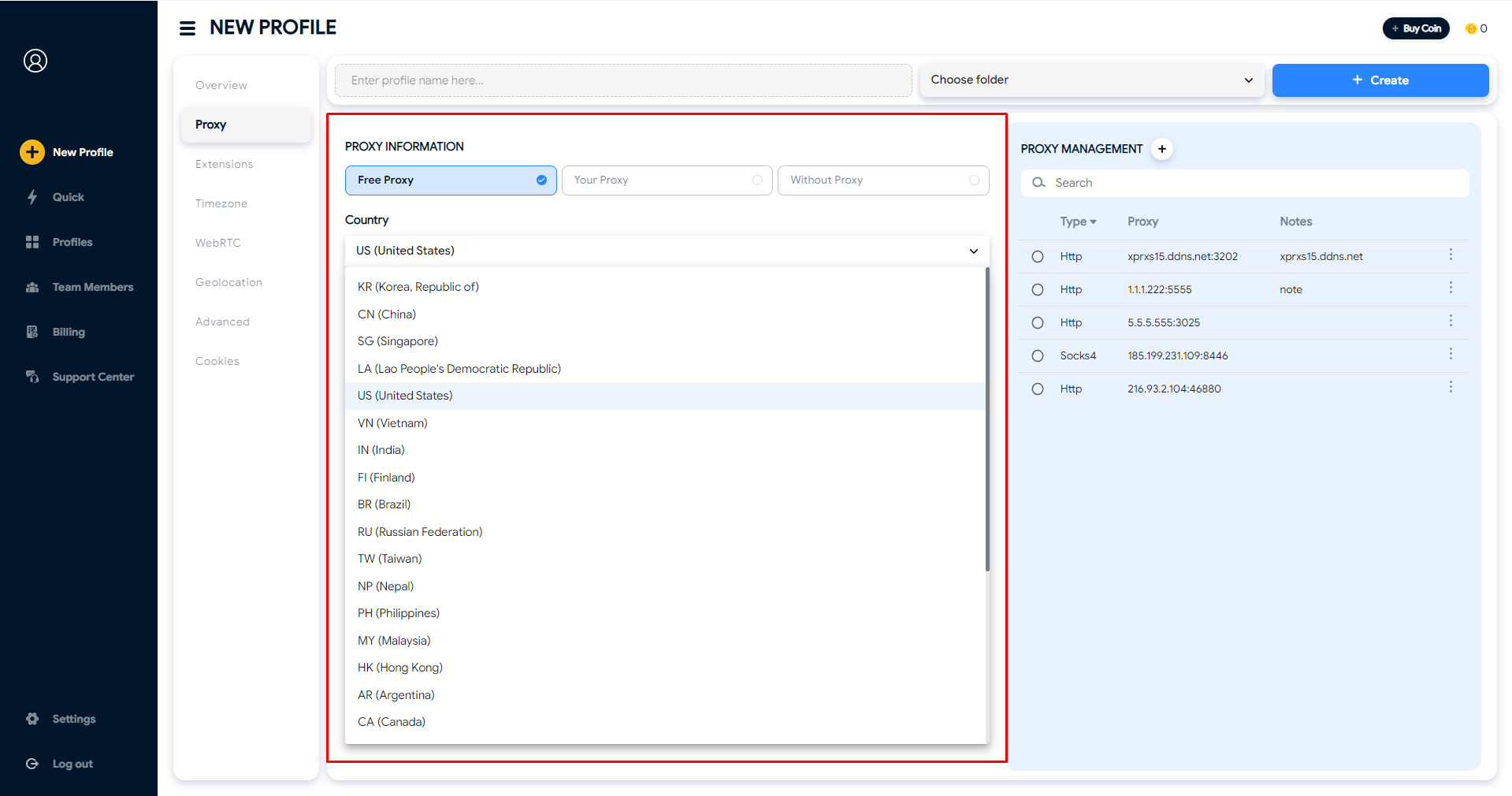
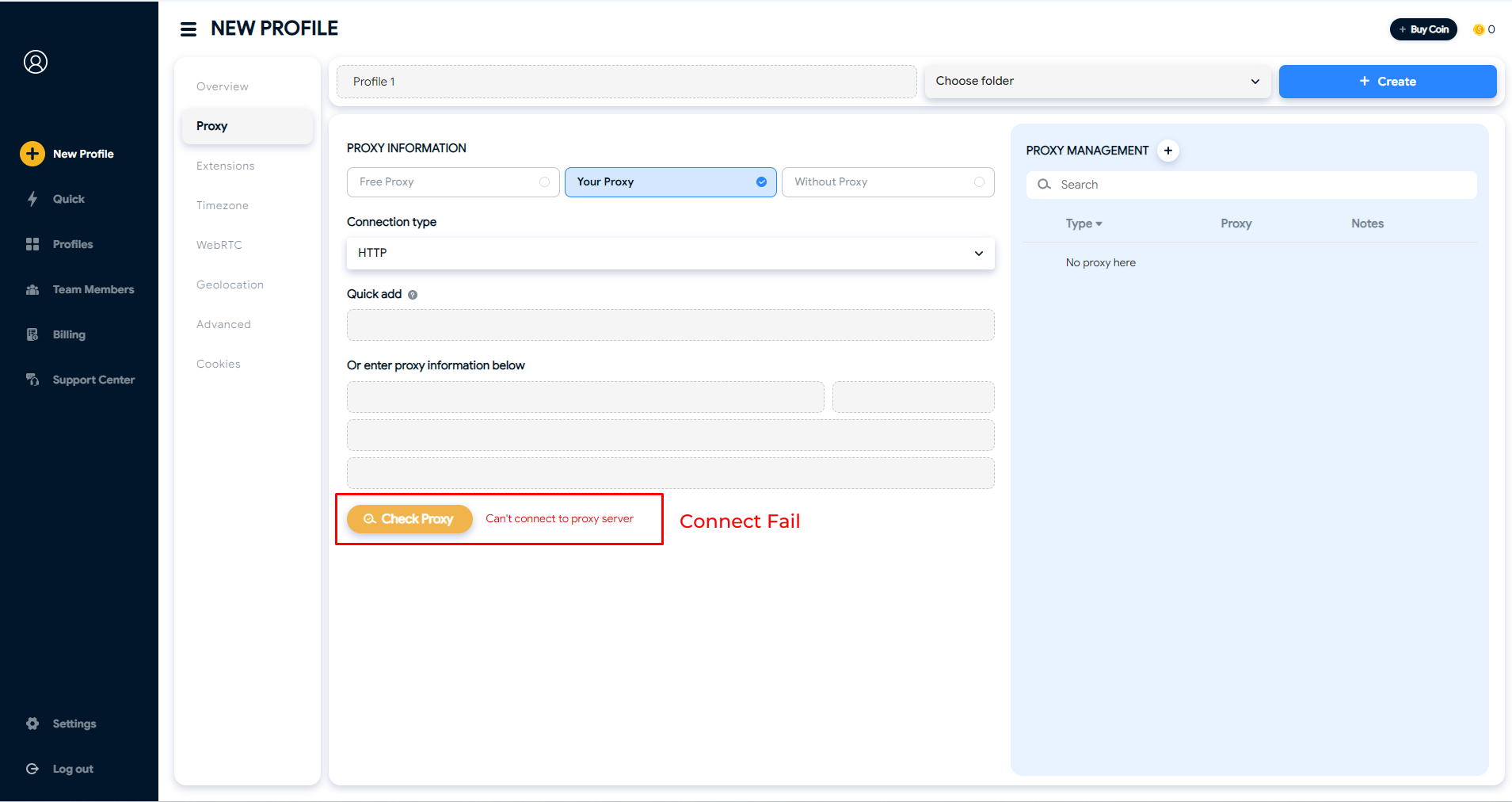
To set up a proxy for your profile, click on Proxy tab.
1. **`Free Proxy:`** From the Base package, you can access to about 10 000 free proxies from Hidemyacc. Choose the country then the system will randomly assign a proxy to your profile.
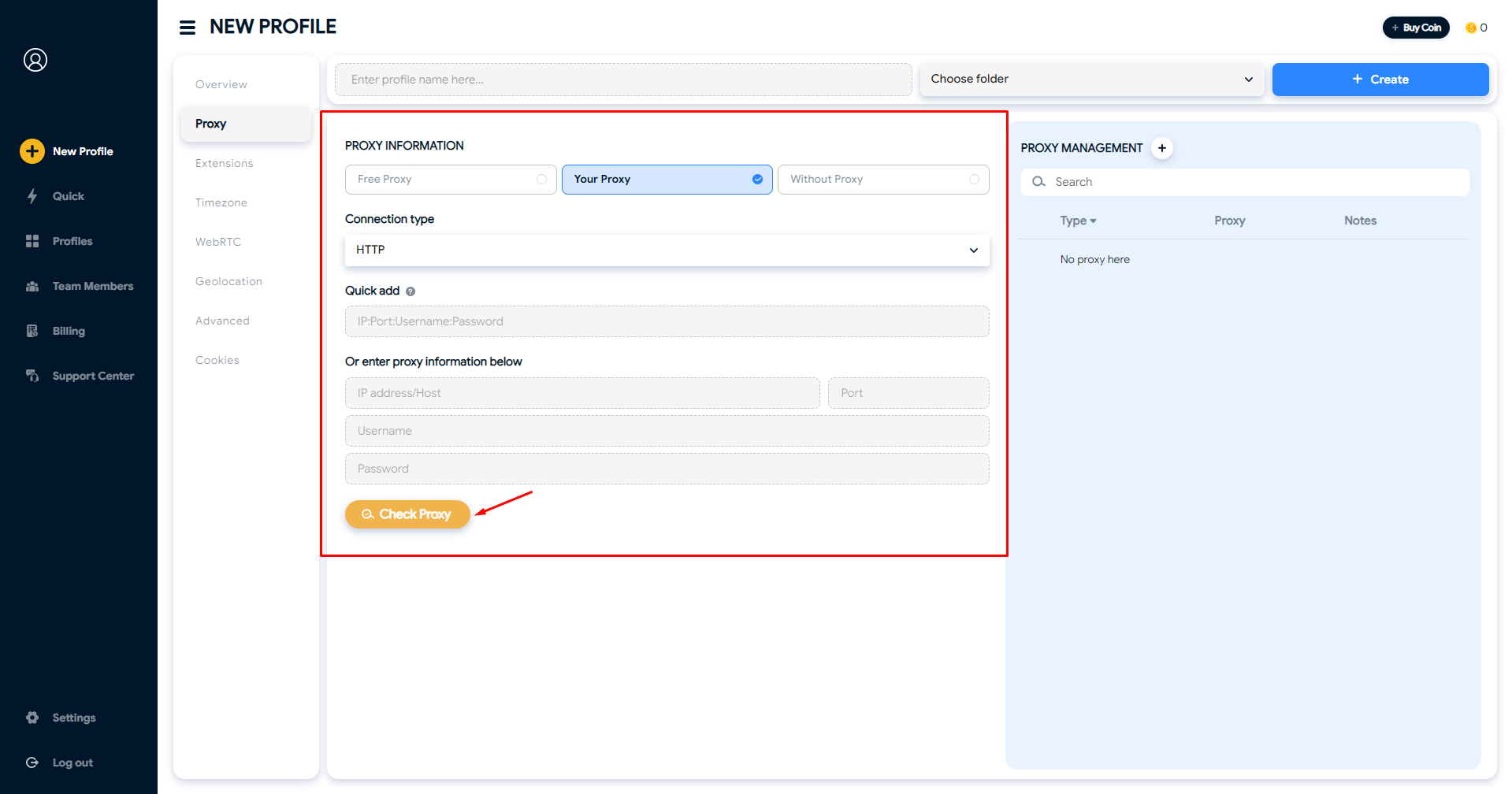
2. **`Your Proxy:`** Use your own proxy.
* Choose your Connection type (Hidemyacc supports HTTP, Socks4, Socks5, Tinsoftproxy, and TMproxy).
* Enter your proxy information in the format: ***ip:port:username:password***
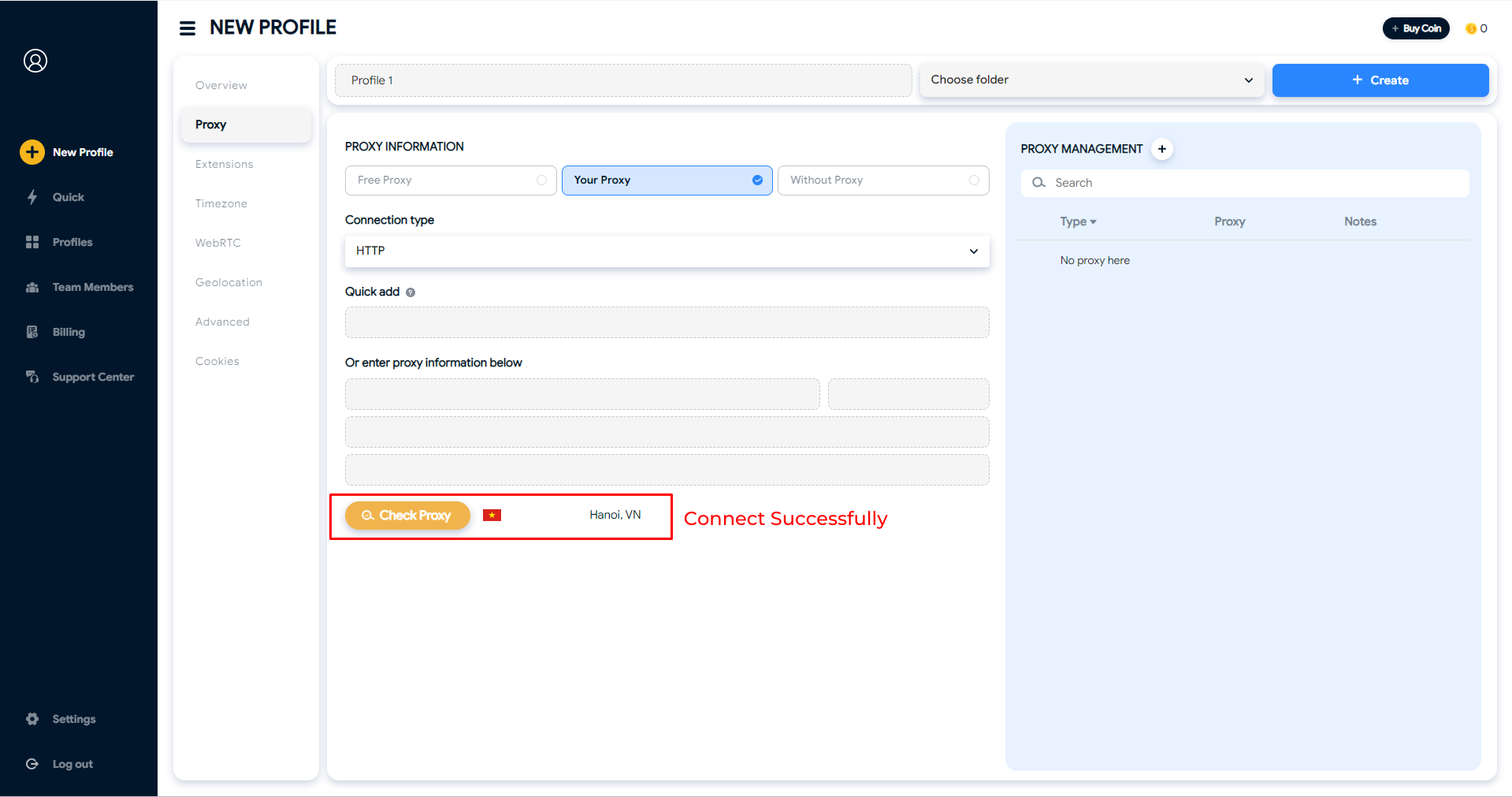
* Click on Check Proxy to check proxy's status
Proxy connects successfully
Can't connect to proxy server
3. **`Without Proxy:`** Select this option if you prefer not to configure a proxy for your profile. In this case, the profile will use the same IP address as your real device.
4. **`Proxy Manager:`** Get a proxy from the Proxy Manager store to add to your profile without having to re-enter that proxy information.
### ⚙️ Extension tab
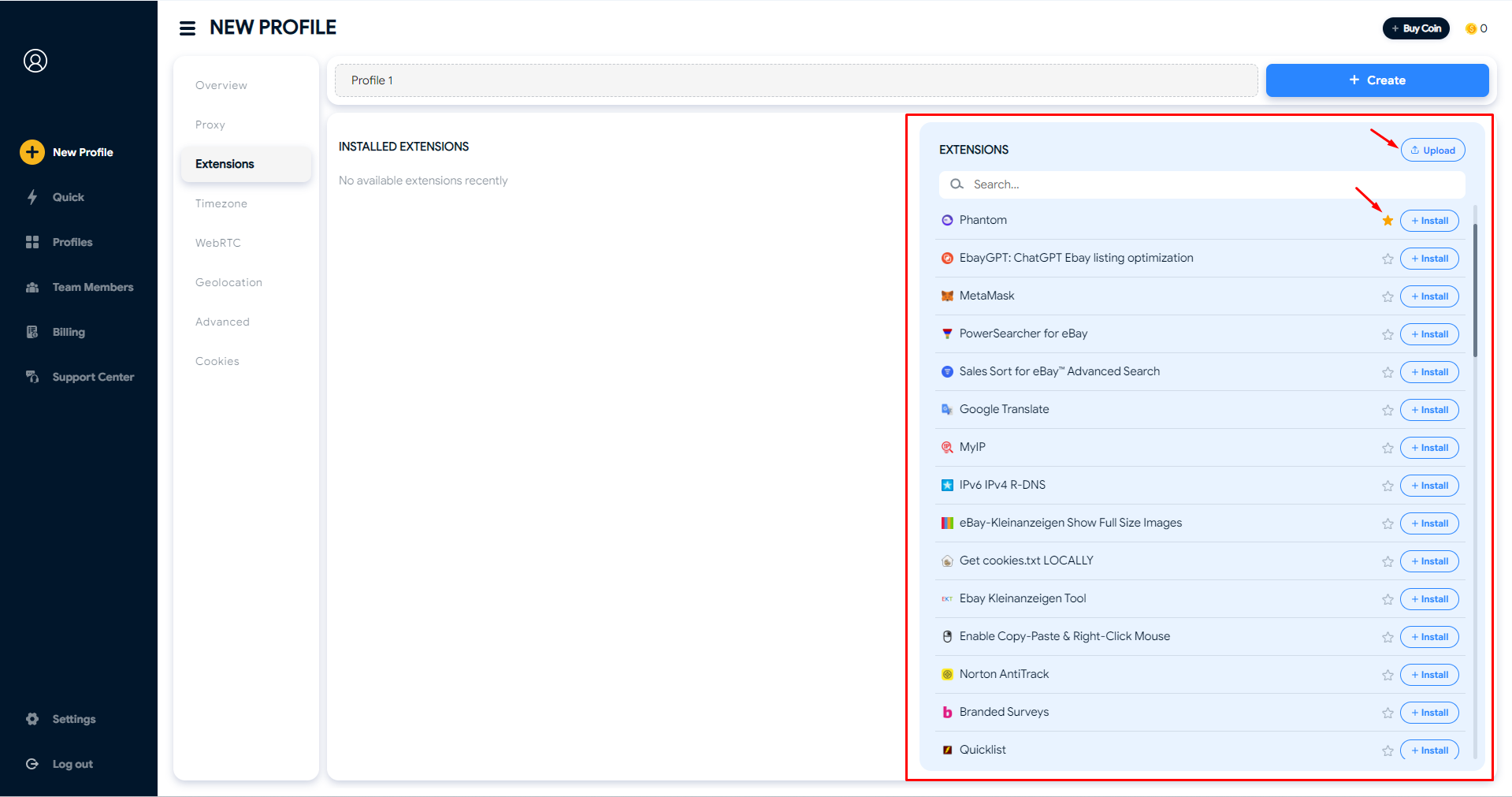
In this tab, you can add extensions to a profile in 3 ways.
#### Method 1: Install available extensions
You can search for extensions you want and **click Install icon** to install it on your profile. To assign extension to all profiles created in the future, click on the star icon.
If you can’t find the needed extension in Hidemyacc, you can upload them from your computer.
#### Method 2: Upload extensions from your computer
Select **Upload**, drag the folder containing the extensions from your computer. To download an extension from the Chrome Web Store, follow these steps.
* **Step 1:** Add the CRX Extractor extension to your Chrome profile.
* **Step 2:** Go to the Chrome Web Store and search for the extension you need.
* **Step 3:** Click on the CRX extension icon and choose "Download as ZIP".
* **Step 4:** Extract the extension file you just downloaded using CRX Extractor.
* **Step 5:** Go to your Hidemyacc profile and upload this file. The system will automatically set up the extension for your Hidemyacc profile.
#### Method 3: Add extensions from Chrome store
This feature allows you to add extensions directly from the Chrome Store without having to download the file to your computer. Simply copy and paste the extension link from the Chrome Store and click **Add Extension** to complete the process.
* If the extension link is valid, the system will let you **Upload Extension**.
* If the link is incorrect, contains syntax errors, missing characters, or extra symbols, the system will display a warning saying that the extension could not be found.
Copy & paste the Chrome store URL to import extension
#### Note on extension limits per package
Hidemyacc limits the number of extensions you can add based on your subscription plan as follows:
* **Mini Plan:** 5 extensions
* **Starter Plan:** 5 extensions
* **Base Plan:** 10 extensions
* **Team Plan:** 25 extensions
* **Business Plan:** 50 extensions
If you exceed the allowed number of extensions, the system will display an error message.
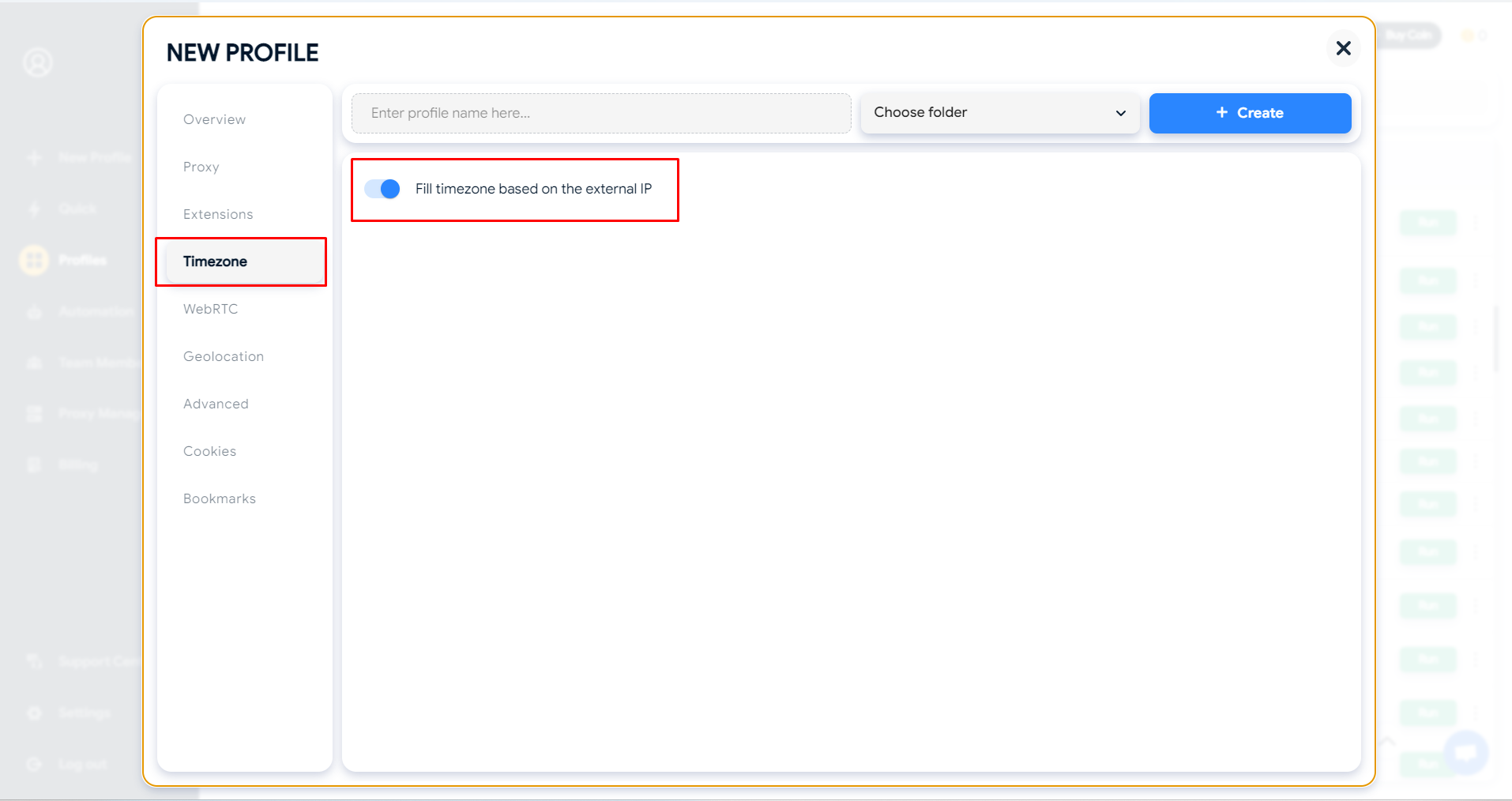
### ⚙️ Timezone tab
Regarding the Timezone section, you can keep it on the default setting. The information will automatically adjust based on your proxy.
If the Timezone information appears incorrect when you check on proxy testing websites, you have the option to manually select the appropriate Timezone.
### ⚙️ WebRTC tab
With Hidemyacc, the IP address exposed via WebRTC is detected on each Run of the profile. Therefore, when using a proxy, pay attention to when you need to enable or disable WebRTC:
* **With a static proxy,** you can leave the default configuration as Altered, meaning websites will detect your real IP address as the proxy's IP. Alternatively, you can enter a different IP address here, and that new IP will be the one detected.
* **With a rotating proxy,** since the proxy address is not fixed and changes continuously, while the WebRTC-detected IP address is fixed (based on the first IP detected when the profile is run), the safest option is to select **Disable** when using a rotating proxy, to avoid raising suspicion.
* **With Real,** WebRTC will detect the original IP address of the actual computer you're using.
> ℹ️ Video guide on using WebRTC:
WebRTC tab
### ⚙️ Geolocation tab
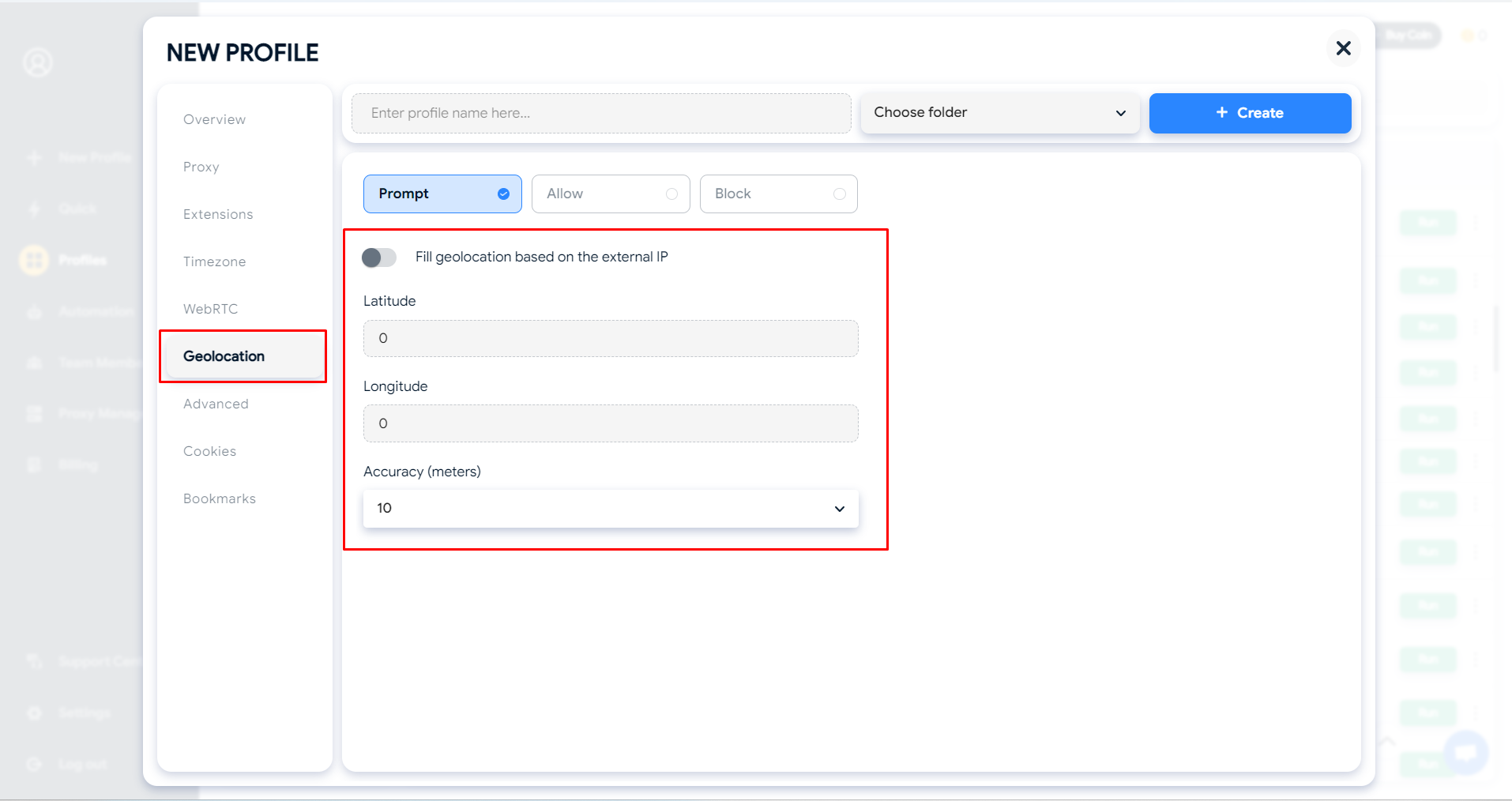
The Geolocation information will automatically adjust based on your proxy. You can change it manually with these 3 following options:
* **`Prompt:`** You can fill your desired location with latitude, longitude, and the accuracy (count on meters).
* **`Allow:`** Choosing this will automatically allow websites to get your geolocation data. Unlike Prompt, you don't have to agree to share your location every time you visit a website.
* **`Block:`** Choosing this will automatically prevent websites from getting your geolocation data.
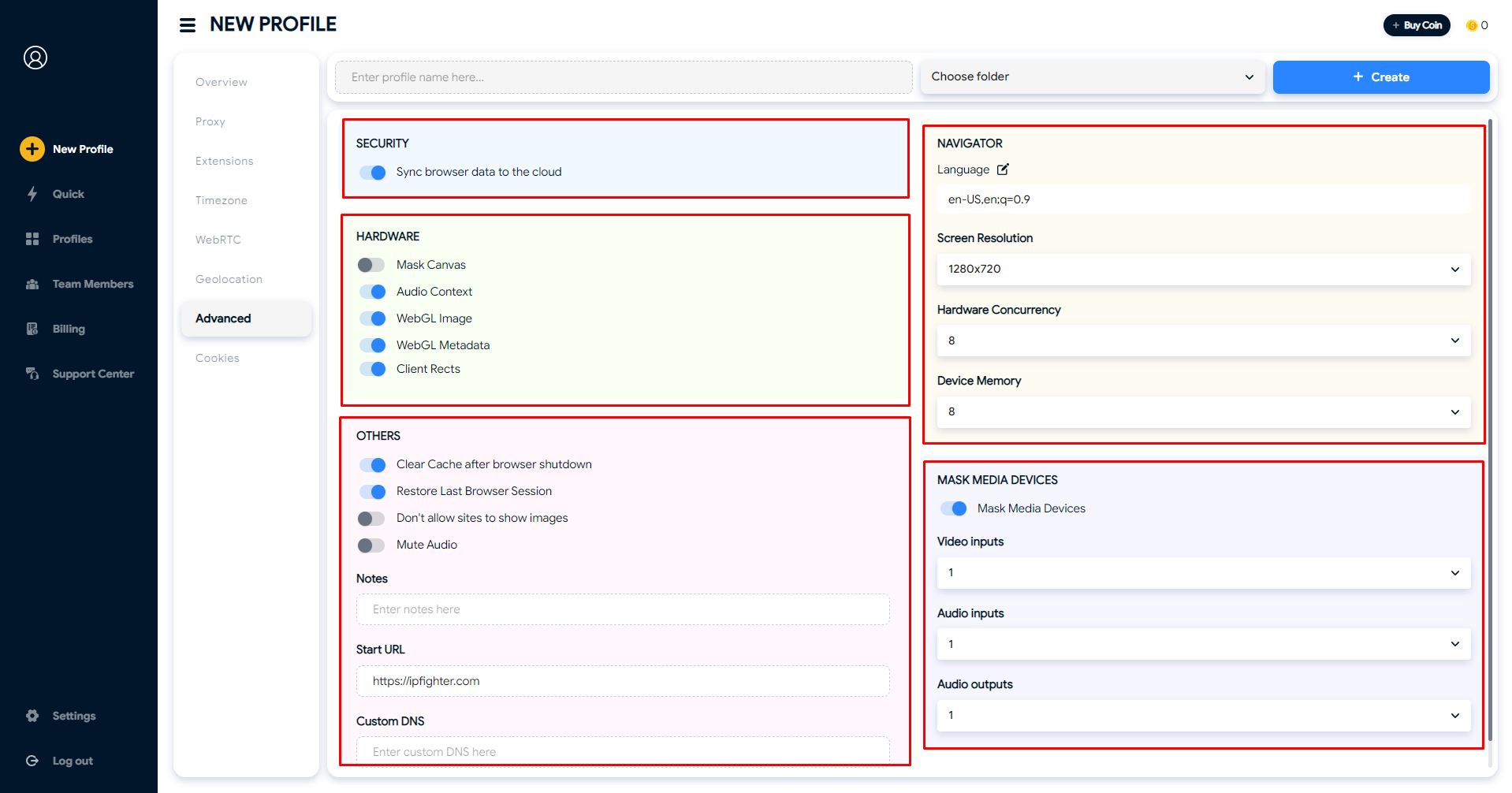
### ⚙️ Advanced tab
By default, you don't need to adjust the configurations in **Advanced Tab** because we already set up everything you need.
These are the advanced settings available when creating a new profile on Hidemyacc.
1. **Security Section:** If you do not wish to synchronize data with Hidemyacc's server, please disable the Browser Data Synchronization to the Cloud feature.
2. **Hardware Section**
* **`Mask Canvas`**: This setting requires the browser to render a hidden Canvas image, which is then converted into a hash string format to assist in the identification of browser fingerprints. This parameter may not be unique since there could be a set of hardware device replicas of yours somewhere in the world.
* **`Audio Context:`** This represents the audio frequency characteristic of the device. The website will request that the browser simulate the playback of audio files based on your audio settings and installed hardware. This parameter may not be unique.
* **`WebGL Image:`** This parameter pertains to web pixel data or how Google Maps and 3D graphics are displayed on websites.
* **`WebGL Metadata:`** This parameter relates to the graphics card. If you are using a virtual machine, there will be no graphics card data available, making it easier for websites to detect that you are not using a genuine device. Conversely, antidetect browsers like Hidemyacc will always provide graphics card data, ensuring websites recognize it as a legitimate device.
* **`Client Rects:`** This information relates to the distance between pixels, allowing websites to gather data about font and screen resolution.
3. **Others**
* **`Clear Cache after browser shutdown:`** Clear the cache each time the profile is closed.
* **`Restore last Browser session:`** When the profile is run, it will reopen previously opened tabs.
* **`Don't allow sites to show images:`**If enabled, the profile will not display images on visited websites.
* **`Mute Audio:`** If enabled, the profile will not play sound on websites.
4. **Notes:** Enter notes for your profile.
5. **Start URL:** When the profile is run, the system will automatically open these URLs. You can add as many URLs as you like. If you no longer wish to open these URLs, you can change them to different ones or delete them.
6. **Navigator Section**
* **`Language:`** This is the browser language. You can change the browser language according to your needs.
* Parameters such as screen resolution, hardware memory, and device memory can be left as default or customized according to your needs.
* **`MAC Address:`** Change the MAC address as needed.
7. **Mask Media Device Section**
These are the parameters regarding peripheral devices connected to your computer. If you turn it off, the system will automatically retrieve information based on your real computer. If you turn it on, Hidemyacc will either randomize or allow you to customize the following parameters:
* **`Video inputs`** (number of cameras): A range from 1 to 5.
* **`Audio inputs`** (number of microphones): A range from 1 to 5.
* **`Audio outputs`** (number of speakers): A range from 1 to 5.
### ⚙️ Cookies tab
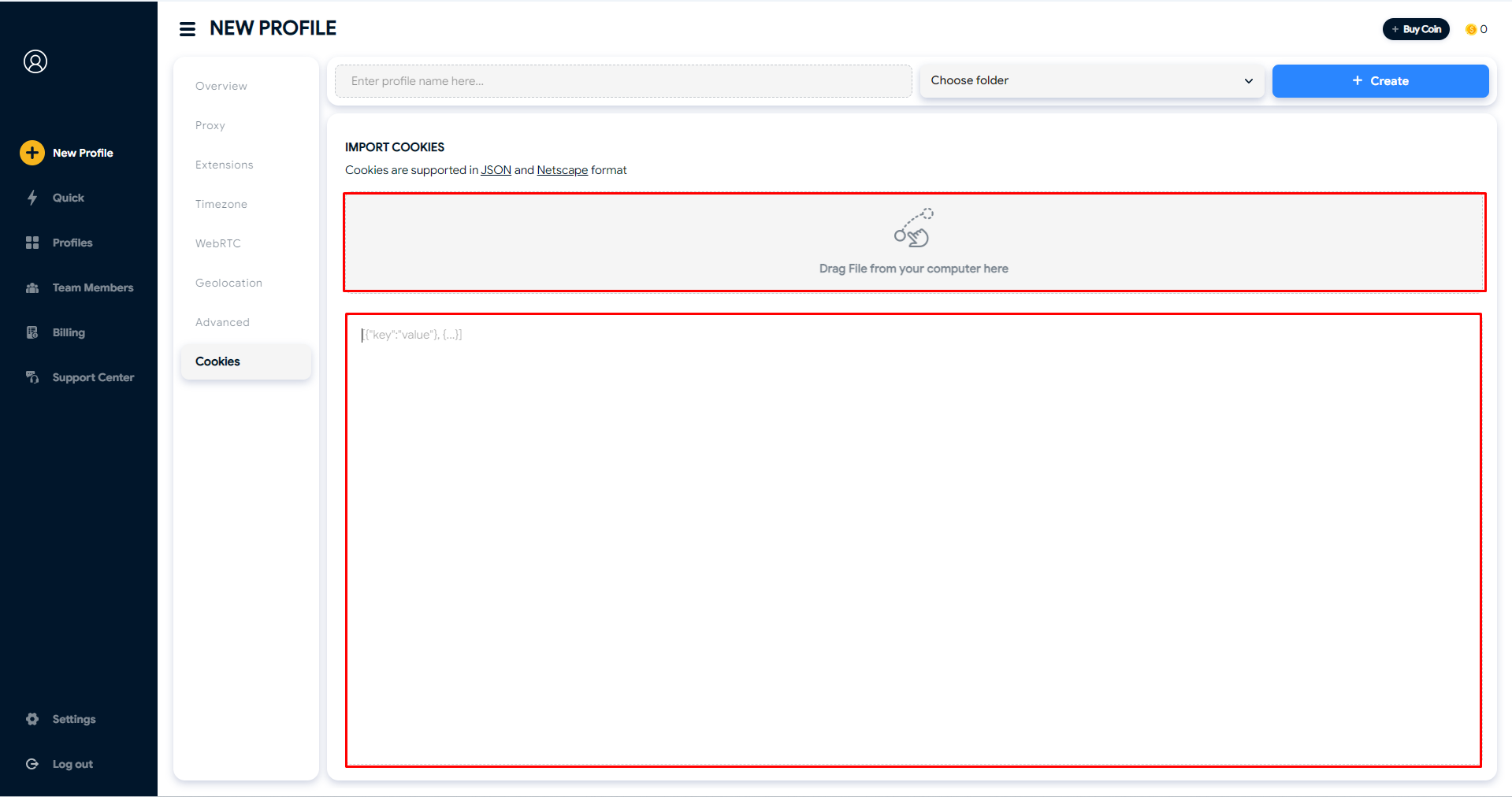
Cookies contain data about user activity on a website, such as login information, cookie preferences, and browsing history. You can easily add cookies to your profile in 2 ways:
* Drag and drop a cookie file from your computer (in JSON format)
* Manually enter cookies
### ⚙️ Bookmarks tab
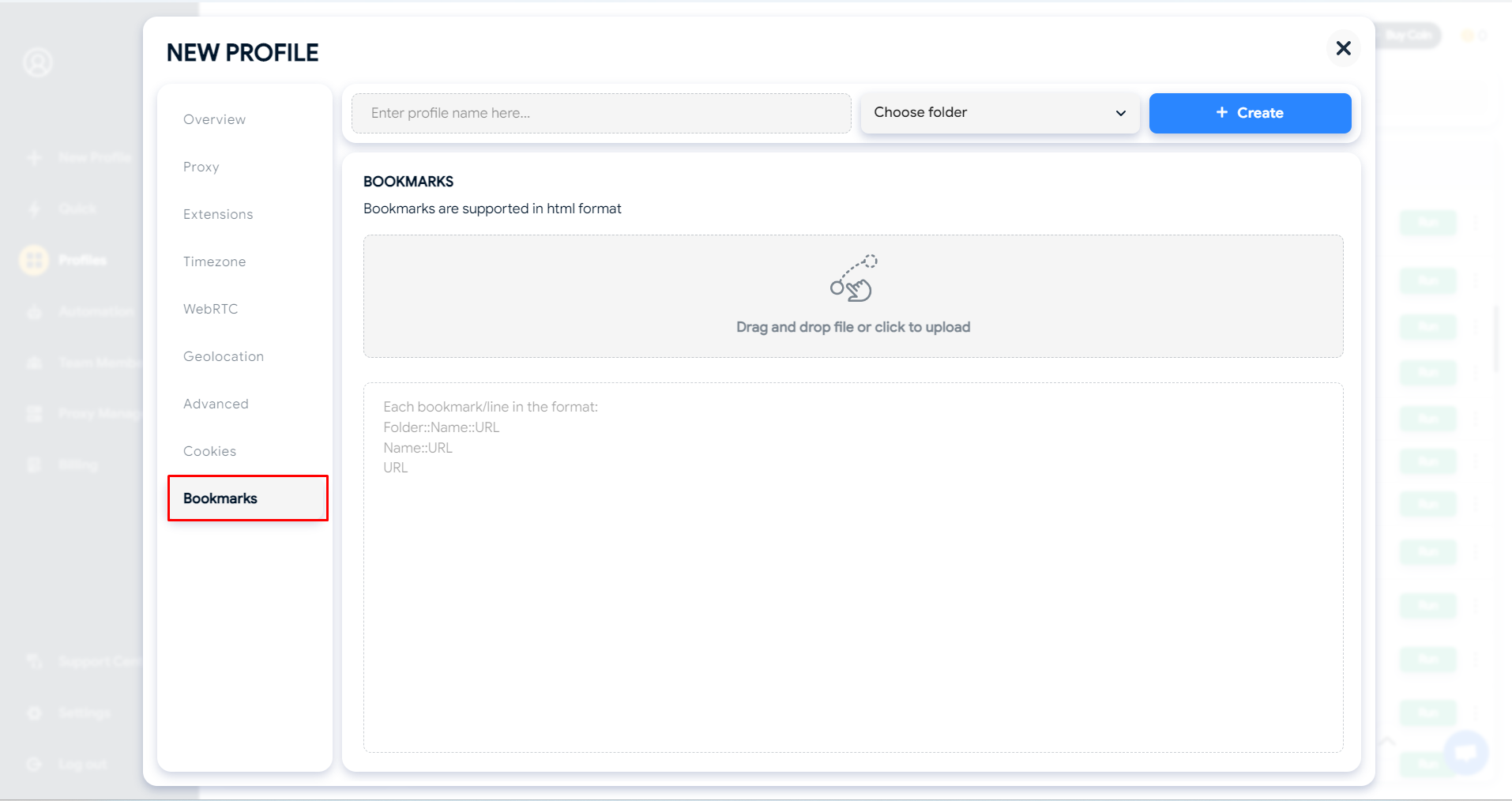
Bookmarks are supported in HTML format. You can upload bookmarks from your computer using the following formats:
* Folder::Name::URL
* Name::URL
* URL